Caregiver Mobile App Onboarding Guide
This guide walks caregivers through sign-in, the main screens in the mobile app, common daily workflows, and what to do at the start and end of every shift.
What this app helps you do
Before you begin
- Have your work phone or assigned mobile device ready.
- Check your official email for your login details.
- If you cannot find them, ask your admin.
- After you sign in, make sure the ALIS connection is working.
Quick shift routine
- Sign in.
- Check ALIS connection.
- Open Scheduled.
- Review My Alerts and Open Alerts.
- Finish what you can in My Alerts.
- Make sure care is logged.
- Review Completed.
- Check for any red delayed items.
1. Signing in and getting access
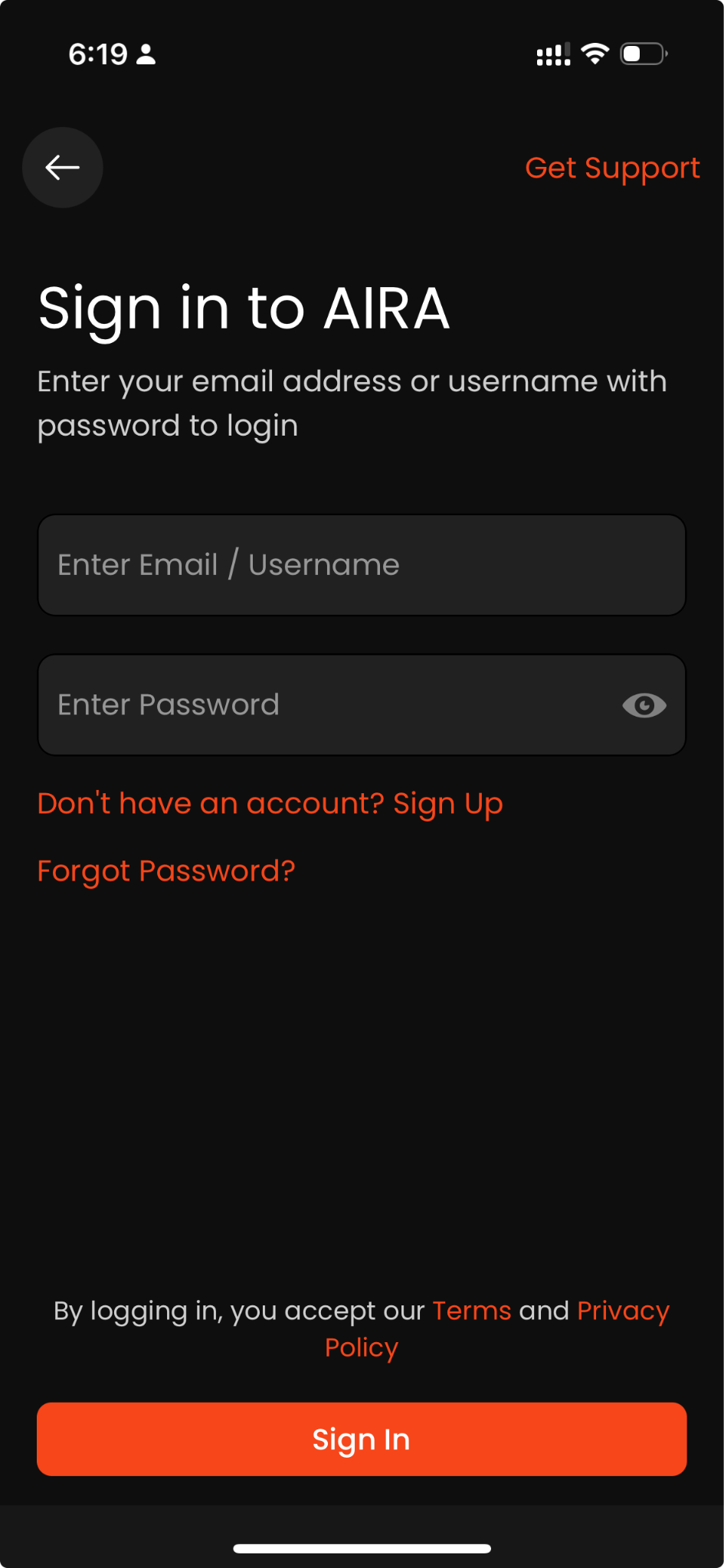
Use the sign-in screen to enter your email or username and password. Your login details should be in your official email. If you do not have them, ask your admin.
How to sign in
- Open the AIRA app.
- Enter your email or username.
- Enter your password.
- Tap Sign In.
If you cannot find your login details
- Check your official email.
- Look for an email from operations@fitmedik.com.
- If you still cannot find it, ask your admin.
Password and support
- To change your password: Settings → Change Password
- To contact support: Settings → Contact Support
2. Start-of-shift checklist for caregivers
Starting the shift the same way each time helps you avoid missed work, delayed care, and confusion about which tasks belong to you.
- Sign in to the app.
- Check ALIS connection. If it is green, it is working. If it is red, tap to reconnect.
- Open Scheduled from the bottom bar.
- Review My Alerts first so you know what is already assigned to you.
- Review Open Alerts to see what still needs to be taken by someone on the team.
- Open Home if you need to log PRN Care, Admin Care, ask a policy question, or start another quick action.
Best practice: before you start floor work, make sure you know which alerts are yours and which ones are still open for the team.
3. Home screen
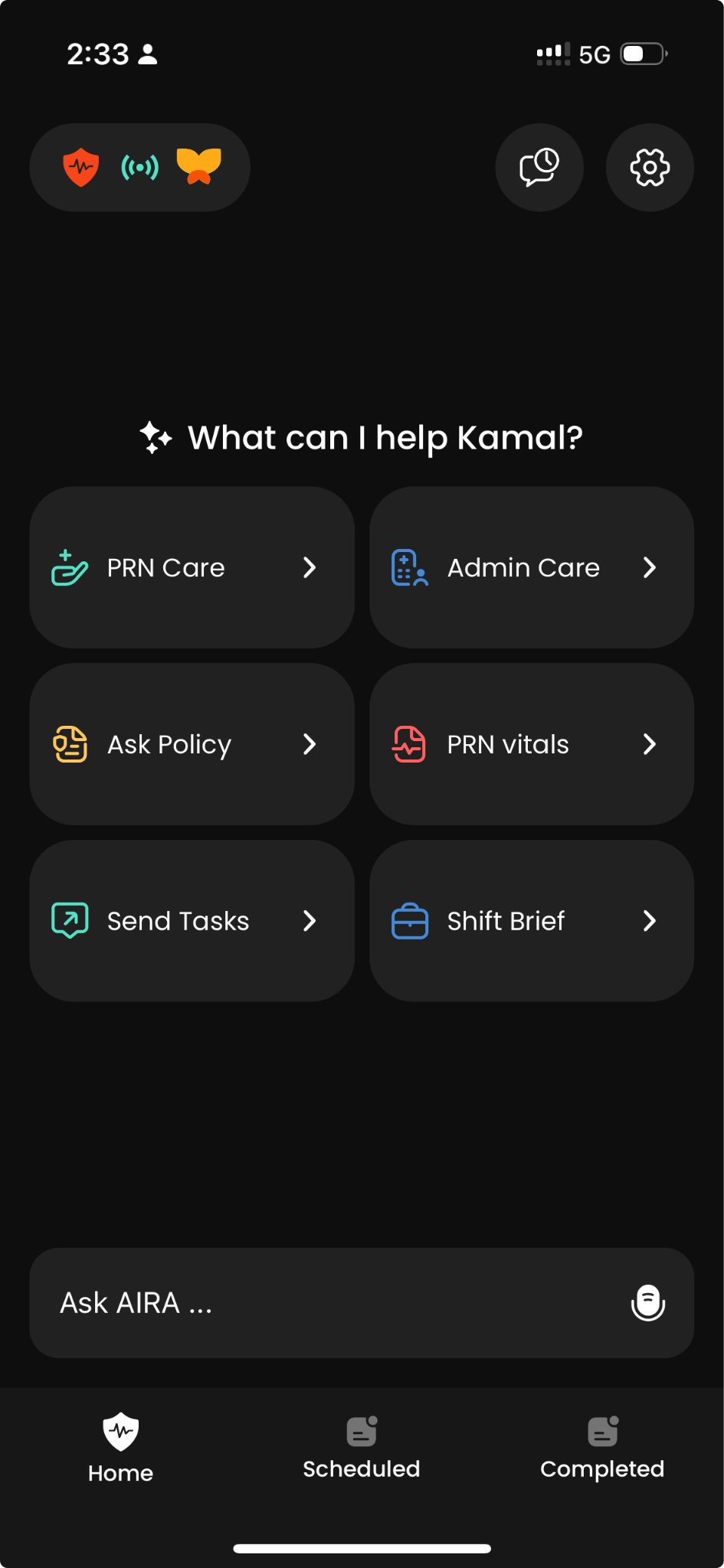
The Home screen is the main starting point. It gives you quick access to care tasks, policy help, chat, settings, and the bottom navigation buttons.
What you will see on Home
- ALIS connection: Green means working. Red means tap to reconnect.
- Chat history: Open past messages.
- Settings: Profile details, change password, and support options.
- Quick Actions: Start PRN Care, Admin Care, Ask Policy, PRN Vitals, Send Tasks, and Shift Brief.
- Chat box: Type or speak here.
- Bottom buttons: Home, Scheduled, and Completed.
When to use Home
- When you need to log care that is not part of a scheduled alert.
- When you need to ask a policy question.
- When you need to open settings or support.
4. Scheduled screen
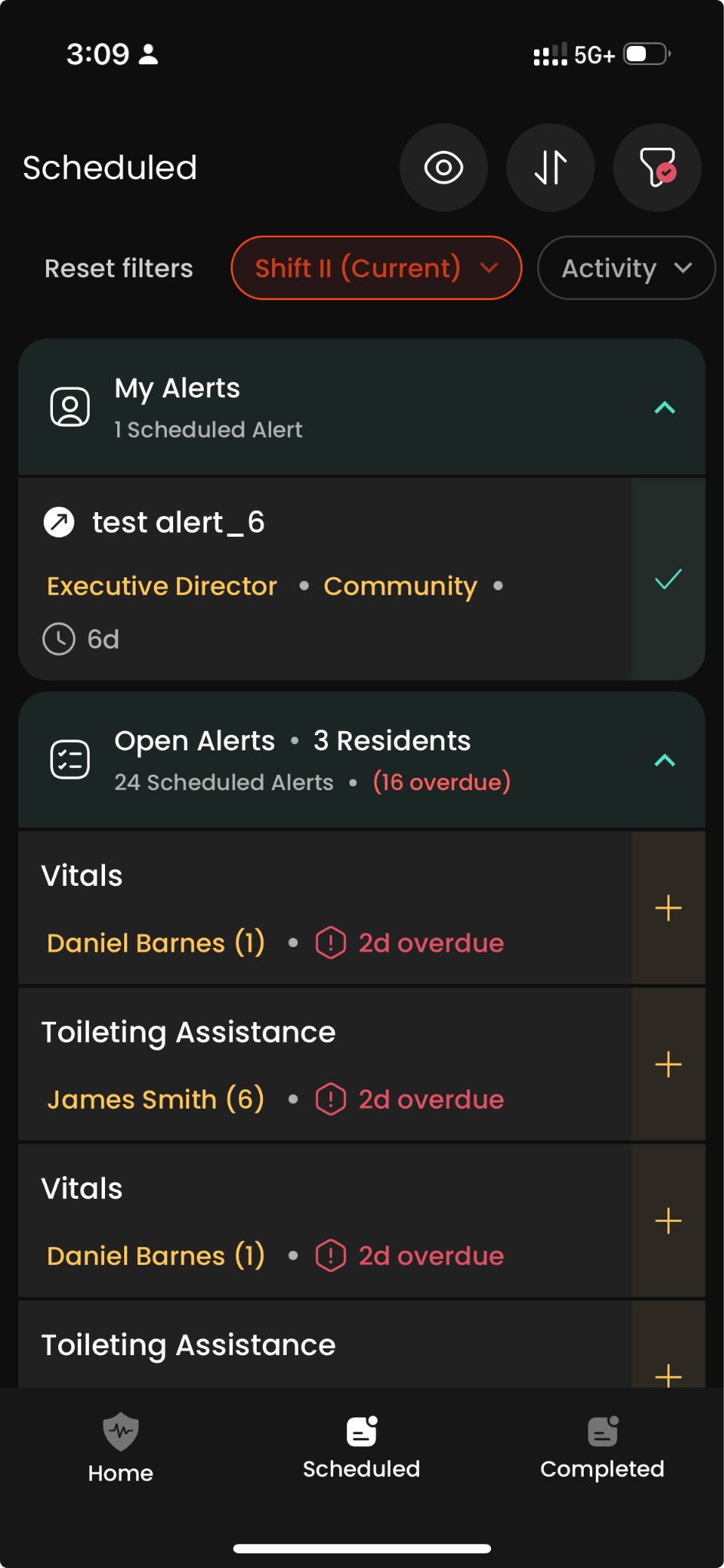
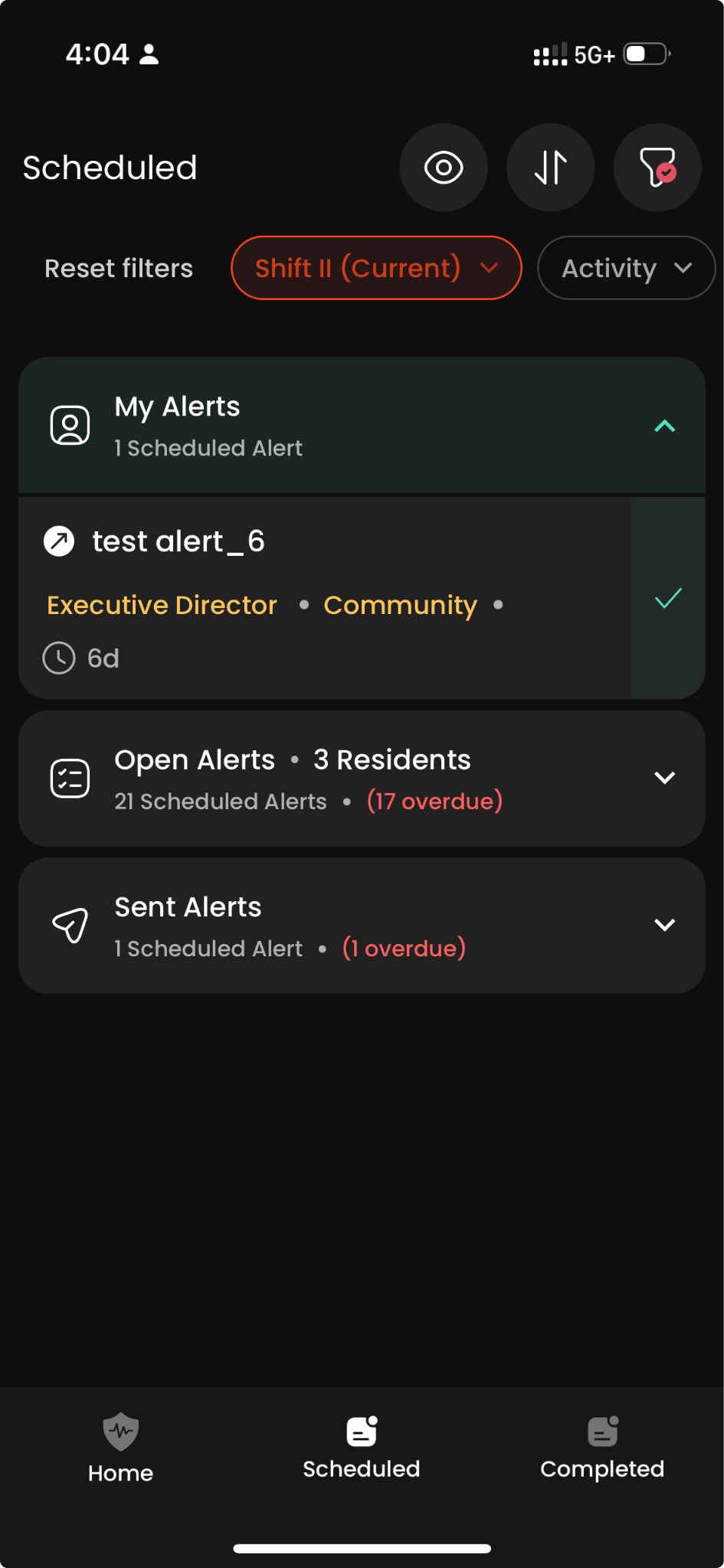
The Scheduled screen is where you manage alerts and tasks. This is one of the most important screens for caregivers during the shift.
Main parts of Scheduled
- My Alerts: Your tasks.
- ✓ Complete: Tap to finish a task.
- Open Alerts: New tasks to take.
- + Take Task: Tap to take a task.
- Top buttons: Sort or filter alerts.
- Alert row: Tap for more details.
Best practice
Use this screen often during the shift. It helps you see what is assigned to you, what still needs to be taken, and what should be completed next.
5. Completed screen
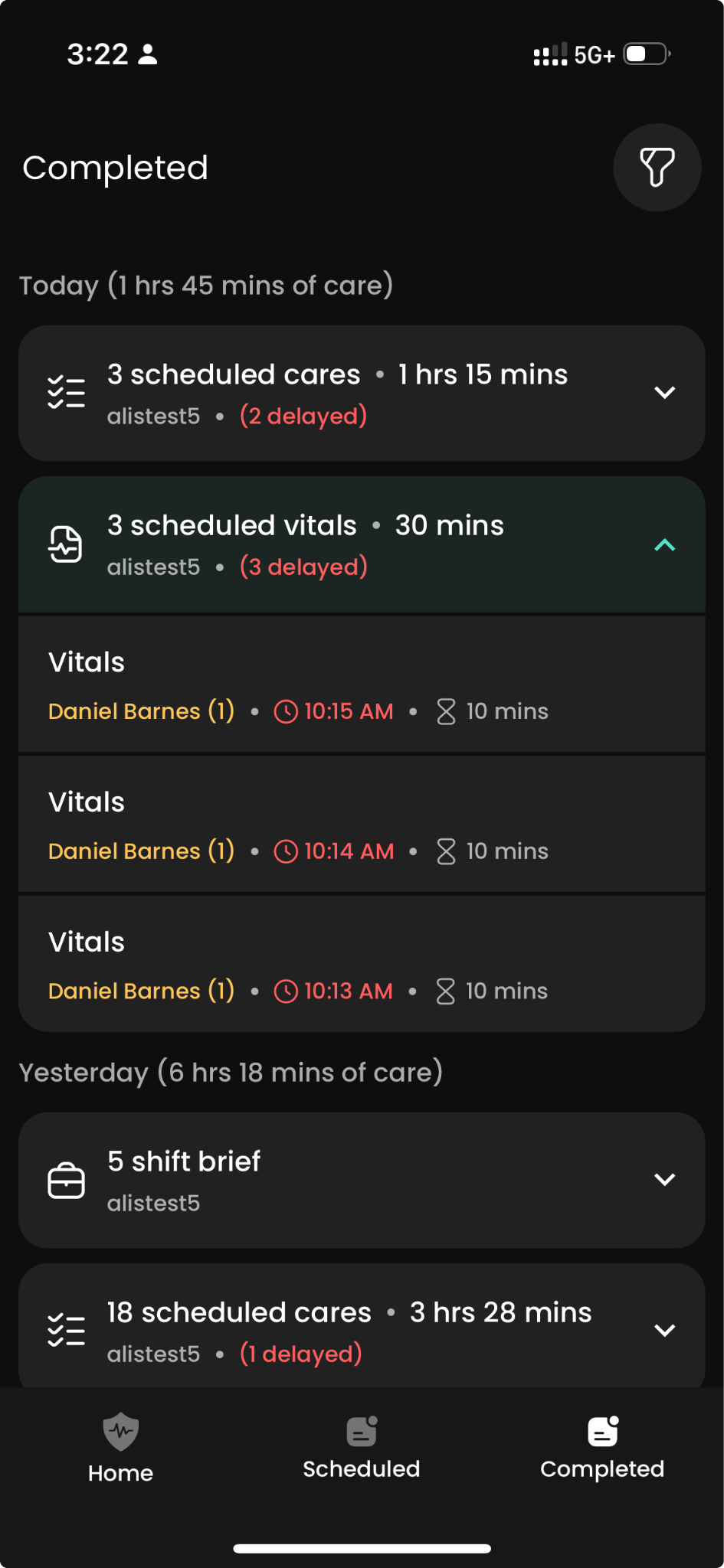
The Completed screen helps you review finished work and confirm that care has been logged correctly.
Main parts of Completed
- Today: Total care time today.
- Yesterday: Total care time yesterday.
- Care type: Shows the type of care and total time.
- Arrow: Tap to open details.
- Alert: Tap to view or edit.
- Red time: Delayed care.
When to use Completed
- To confirm your work was logged.
- To review care details.
- To edit an entry if needed.
- To check delayed items.
6. Understanding alert types
Knowing the difference between alert types helps caregivers quickly understand what belongs to them and what still needs team action.
Alert types
- My Alerts: These are your assigned tasks to finish. If they are not finished, they move to Open Alerts when the shift ends.
- Open Alerts: Alerts that are not taken yet. Anyone on the team can take them.
- Team Alerts: Alerts for your team. You can see what others on the team are working on.
- Sent Alerts: Alerts you sent to someone else.
7. Core caregiver workflows
These are the most common actions caregivers will use during a normal shift.
How to complete an alert
- Tap Scheduled.
- Find the task in Open Alerts.
- Tap + to take it.
- It moves to My Alerts.
- Tap ✓ to finish.
- Fill in details.
- Tap Submit.
How to log PRN Care
- Tap PRN Care on the Home page.
- Type the resident name, what you did, and the time.
- Tap Submit.
How to log Admin Care
- Tap Admin Care on the Home page.
- Type what you did and the time.
- Tap Submit.
How to ask a policy question
- Tap Ask Policy on the Home page.
- Type or speak your question.
- Tap Submit.
- See the answer on the screen.
How to send a task
- Tap Send Tasks on the Home page.
- Select the team member.
- Type the message.
- Choose the due time.
- Send the task.
8. End-of-shift checklist for caregivers
A short end-of-shift routine helps reduce missed documentation and pushes fewer unfinished items into the next shift.
- Open Scheduled and review My Alerts.
- Finish assigned tasks that can still be completed before handoff.
- Log any remaining PRN Care or Admin Care that has not yet been documented.
- Open Completed and confirm your work is there.
- Check for red delayed items and make sure they are understood before the shift ends.
- Remember: if your assigned alerts are not completed, they move to Open Alerts when the shift ends.
Best practice: try to document care close to the time it happens. This makes the record more accurate and reduces end-of-shift cleanup.
9. Common questions and troubleshooting
Use these answers when a caregiver needs quick help without leaving the unit.
ALIS connection is red
Tap it to reconnect. If it stays red, contact your supervisor or support.
My alerts went away
At the end of the shift, assigned alerts move to Open Alerts if they are not completed.
I forgot where to find my login details
Check your official email for login details. Look for an email from operations@fitmedik.com. If needed, ask your admin.
I need to change my password
Go to Settings and tap Change Password.
I need support
Go to Settings and tap Contact Support. You can book a call or send an email.
I need to review what I did today
Open Completed to see today’s care time, details, and any delayed items.
10. Daily best practices for caregivers
Document promptly
Log care as close to the time of care as possible so details stay accurate.
Check red items
Red means delayed or needs attention. Review these before the shift ends.
Use the right screen
Use Scheduled for alerts, Home for quick actions, and Completed to review work.